Google Ads + Claude via MCP: 5 checks before connecting a client account
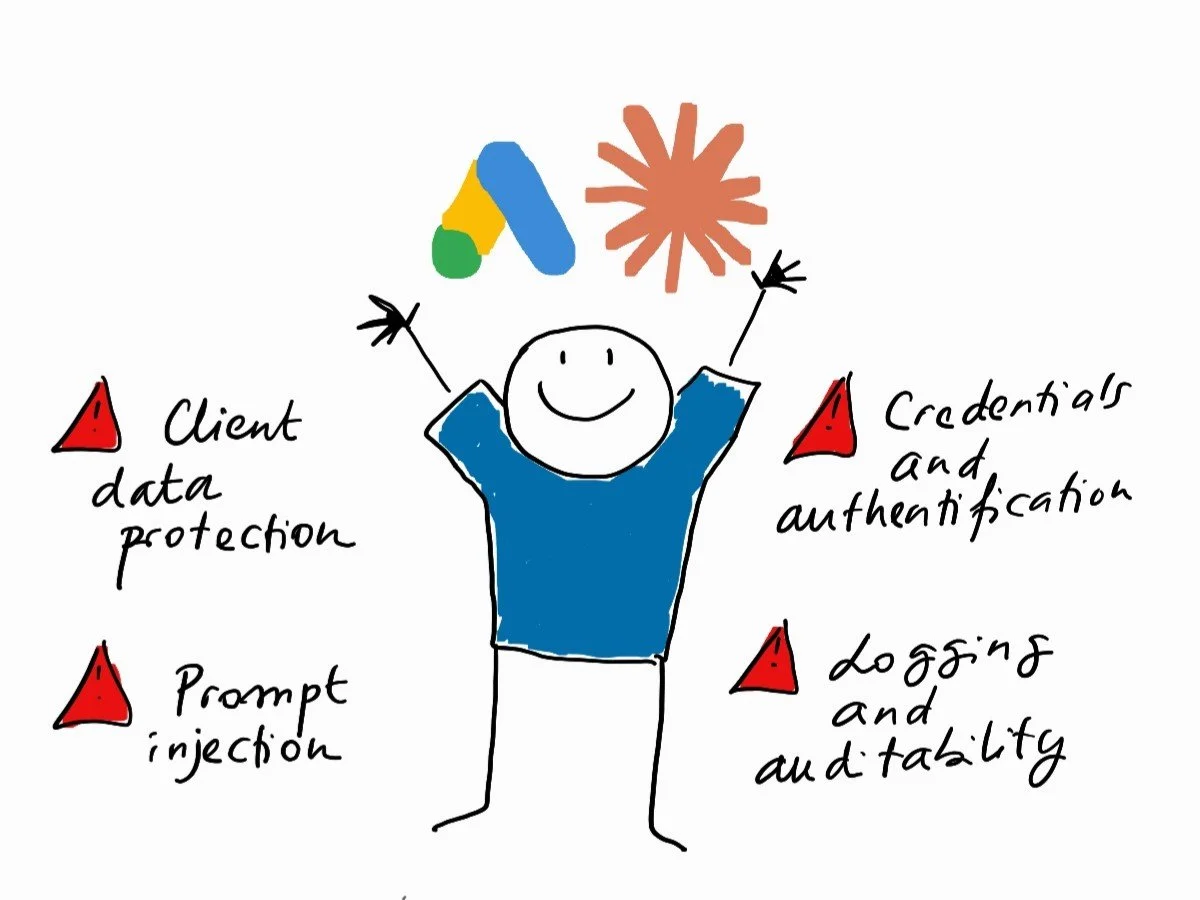
An AI connector can make campaign analysis more efficient. But before connecting it to a client account, a Google Ads manager needs to know exactly what it can read, what it can change and how its actions can be traced.
The benefits are easy to see: retrieve the figures, spot an anomaly, prepare an analysis and draft a recommendation with fewer manual steps.
The Model Context Protocol (MCP) can act as a bridge between Claude and external tools. But “Google Ads MCP” does not refer to a single product with a fixed set of permissions. Google’s official server is currently read-only; a custom server can expose different tools, depending on how it is built and configured. So review the connector you are actually using rather than relying on its name.
1. Check what the server can do
Start by reviewing the tools the server exposes. Can they only retrieve data and reports, or can they also change bids, budgets, ads or campaign status?
Google’s published Google Ads server is currently described as strictly read-only: it can, for example, list accessible accounts, run queries and retrieve metadata, but it cannot change campaigns. That does not mean every server called “Google Ads MCP” offers the same safeguards.
For each integration, ask:
Which tools are available?
Which of them can change data?
What Google Ads permissions do those actions require?
Has the server been reviewed, and who maintains it?
The label “MCP” is not a permissions review.
2. Check account access
Access through a manager account can extend to several client accounts. Google states that user access granted at manager-account level can be inherited by linked accounts; effective permissions depend, among other things, on the account hierarchy and the manager account used for the API call.
Before connecting:
Identify the Google account used to authenticate.
Check which accounts it can access, including through a manager account.
Confirm that this access matches the needs of the use case.
Avoid shared credentials with broader access than the workflow requires.
The Google Ads API uses one OAuth scope for its API access; it does not provide separate OAuth scopes for read and write access. Google Ads roles, account relationships and the API calls exposed by the server are separate controls to review
3. Check approval settings
In Claude, whether a tool requires approval depends on the product, plan, session mode and organization settings. Cowork, for example, provides connector permission options such as “Always allow,” “Needs approval” and “Blocked,” but the effect can vary by mode and admin policy. Organizations may require per-task approval for write-capable tools, even where a user has saved an “Always allow” preference.
Don’t assume you will see a prompt before every action. Check the effective settings for the product and organization you use. Block tools the workflow does not need, and decide who must approve an action before it can affect a live account.
An approval prompt in the interface is not, by itself, a complete permissions policy. It does not replace checking Google Ads access or establishing an approval process that fits your client accounts.
4. Keep a person responsible
Campaign metrics do not tell the whole story. A recommendation may miss a client’s margins, stock levels, commercial priorities, seasonality, brand constraints or recent decisions.
For a budget or bid change, make the steps explicit:
Analysis → recommendation → human review → approval → execution
Automation may still be part of the workflow. The important thing is to define who reviews and approves a consequential change, and who is responsible for applying it.
5. Make actions traceable
If a client asks why a campaign changed, your process should let you establish:
Which account and campaign were affected.
What change was proposed and what was actually applied.
Who reviewed and approved it.
When it happened.
What the relevant before-and-after states were.
Don’t assume an MCP server log or chat transcript will contain all of this. Check what the server, AI product and Google Ads account actually record, and how long the records are retained. Where those records are insufficient, maintain an appropriate internal record under your agency’s procedures and client commitments.
Claude audit-log availability depends on the plan; Anthropic’s current Help Center says audit logs are available to Enterprise organizations. Treat platform logs as one possible source—not as a complete change-control record.
Look beyond the connector
The five checks above focus on the connector, access and accountability. A sound review should also consider the wider setup: where data goes, how credentials are protected, what the AI service retains, and what other tools the assistant can use.
Client data and contracts
Campaign data retrieved by a connector may be sent to or processed by other parts of the setup. The actual flow depends on the AI product, server, hosting and connected services.
Before connecting a client account, check:
What the client contract says about third-party tools and AI services.
Whether the relevant data-processing arrangements cover this use and identify the parties’ roles and any subprocessors.
The terms for the specific product and plan, including data handling, retention and model training.
Whether personal data may be involved and, if so, what legal and contractual obligations apply.
Where a provider processes personal data on behalf of a controller, GDPR Article 28 requires the processing to be governed by a binding contract or other legal act. A processor also needs prior specific or general written authorisation from the controller to engage a subprocessor.
Prompt injection and connected tools
Content an assistant reads may come from third parties - including campaign names, ad copy and search terms. Treat retrieved content as untrusted; it may contain instructions intended to influence the model.
A read-only Google Ads server limits what that server can change in Google Ads. It does not make the overall workflow read-only if the same assistant can also send email, edit files or use other tools. Review the assistant’s combined tools and permissions, and keep them limited to what the task requires.
Credentials and authentication
Ask how the connector authenticates and where its credentials are stored:
Does it use a user’s OAuth login or a service account?
Does it run locally or in a hosted environment, and who administers that environment?
How are credentials protected, rotated and revoked?
Which Google Cloud project is associated with the OAuth credentials or service account?
Google sunset Google Ads API developer tokens on September 9, 2026. API access levels are now associated with the Google Cloud project used for the API calls; the latest version of Google’s MCP server no longer requires a developer token. Check the project’s access level and use the authentication instructions for the specific server version you deploy.
Logs and the wider setup
Don’t assume any one platform’s logs meet your agency’s audit needs. Check which logs are available on your plan, what they record and how long records are retained. Avoid keeping more client data than the task and your procedures require.
Review all tools connected to the assistant—not just Google Ads. A read-only Ads connector does not prevent the assistant from taking action through another connected service.
A simple governance rule
Keep analysis and execution separate. Start with read-only access when it is enough for the task. Before enabling write-capable tools on a live account, define the scope, permissions, approver and record-keeping process.
Google’s documented Google Ads MCP server is currently read-only. That is a useful starting point, not the end of the review: verify the server you are using, the Google identity and accounts it can reach, the Google Cloud project behind its API access, and the wider tools available to the assistant.